
You finally get comfortable, grab a snack, and fire up your favorite site to meet some new people. But instead of seeing a friendly face on OmeTV, Omegle, or Coomeet, you just stare at a frustrating black box. Sound familiar? Let’s be real, nothing kills your social mood faster than a busted webcam.
You sit there clicking refresh a dozen times, wondering if your camera is completely broken. Trust me, you aren’t the only one dealing with this exact headache today. A blank screen is basically a rite of passage for anyone who chats online.
But don’t toss your laptop out the window just yet! Fixing a broken video feed is usually incredibly easy once you know where to look. We just need to flip a few digital switches hidden inside your web browser.
Here’s the thing about modern web browsers. They are super protective of your privacy, which is generally an awesome thing. But sometimes they block your camera totally by accident when you try to load up OmeTV or Coomeet.
They treat every single website like a potential spy until you explicitly tell them it is safe. Even older giants like Omegle ran into this same permission block all the time. Your browser literally builds a giant invisible wall between your webcam and the chat room.
Breaking down that wall is exactly what we are going to do right now. You don’t need a computer science degree to figure this out. Just follow these simple steps, and you will be back on camera in a few minutes.
Start With the Absolute Basics
Before we dive into the nerdy computer settings, let’s check the absolute basics. Is your external webcam actually plugged all the way into the USB port? Sometimes those cords wiggle loose if you move your laptop around on the couch.
Also, check if your camera has a tiny physical privacy cover built right in. Honestly, I once spent an entire hour trying to fix my webcam only to realize the little plastic shutter was closed! It is a super common mistake, so just double-check it.
If you are using a laptop, make sure there isn’t a special camera kill switch on your keyboard. Some modern laptops have a specific button that completely cuts power to the webcam. Pressing that button by accident will give you a black screen every single time.
Fixing the Camera in Google Chrome
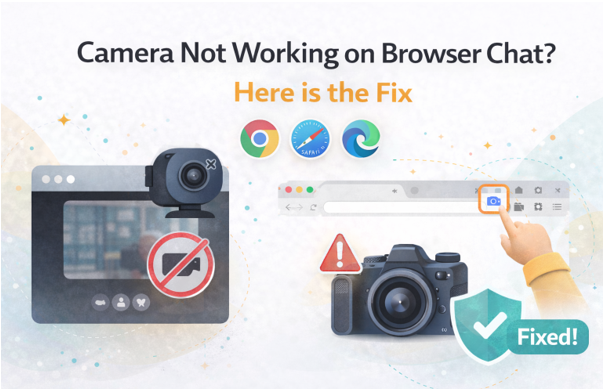
Chrome is usually pretty great, but it loves to block webcams without telling you. If your screen is totally black, look up at the very top of your screen in the web address bar. Do you see a tiny icon that looks like a video camera with a red line right through it?
Just click that little camera icon right now. A small menu will pop up asking if you want to allow the site to use your camera and microphone. Select “Always allow” and then hit that refresh button to see if it worked.
If you don’t see that icon, you have to dig slightly deeper into the settings. Click the three little dots in the top right corner of Chrome and hit Settings. Go to “Privacy and security,” then click on “Site Settings” to find your camera controls.
Once you are in there, make sure the right camera is selected from the drop-down menu! Sometimes Chrome gets confused and tries to use a camera that doesn’t even exist. Picking the correct device usually fixes the problem instantly.
Getting Safari to Play Nice
Mac users, I definitely haven’t forgotten about you. Safari is notoriously strict when it comes to giving out hardware permissions to random websites. It loves to keep everything locked down tight to protect your privacy.
To fix this, open Safari and click the word “Safari” in the top left corner of your screen, then hit Settings. Click on the “Websites” tab at the very top of that new window. Now, look down the left side menu and click exactly on “Camera.”
You will see a list of websites you recently visited on the right side of the box. Find your chat site in that list and change the setting next to it from “Ask” or “Deny” to “Allow.” Boom. Your camera should pop right back to life.
Making Microsoft Edge Work
Edge is built a lot like Chrome these days, so the fix is super similar. Look for a tiny padlock icon or a blocked camera icon right next to the website address at the top. Clicking that usually gives you a quick option to allow camera access right then and there.
If that quick trick doesn’t work, click the three dots in the top right corner and open your Settings. Search for “Cookies and site permissions” in the left menu. Scroll down that page until you see the specific Camera option.
Make sure the switch at the top actually says “Ask before accessing” so the hardware isn’t totally blocked. Then, check the “Block” list below that to make sure you didn’t accidentally ban your favorite chat app. Just hit the trash can icon next to the site if it got stuck on the naughty list.
The Jealous Background Apps
Think of your webcam like a super-exclusive VIP room at a busy club. Only one app gets to go inside and use it at a single time. If another app is already hanging out in the VIP room, your browser gets kicked straight to the curb.
Do you have Zoom, Skype, or Discord running in the background right now? Even if you aren’t on an active video call, those apps often hog the camera feed just by being open. They essentially hold your webcam hostage without you even realizing it.
You need to totally quit those other programs right away. Don’t just minimize them or click the red X! Actually close them out completely so they fully release their grip on your camera. Once they are entirely gone, refresh your browser cache and see if your smiling face finally appears.
Check Your Main Computer Settings
Sometimes the web browser isn’t the actual problem at all. Both Windows and Mac computers have heavy master switches that can turn off your camera system-wide. If this master switch is flipped off, no browser trick in the world will save you.
If you use Windows, press your Windows key and search for “Camera privacy settings.” Make sure the big master toggle at the very top is turned to “On.” You also need to scroll down just a bit and ensure “Let desktop apps access your camera” is also flipped on.
For the Mac crowd, open your System Settings and find the “Privacy & Security” section. Click on the Camera option to see what is going on. You will see a list of apps there, so just make sure the switch next to your web browser is flipped on and glowing blue.
The Magic of a Quick Reboot
We totally joke about it all the time, but turning things off and on again actually works. Your computer handles millions of tiny background tasks every single minute. Sometimes those tasks get tangled up and freeze your video hardware completely.
If you have tried all the permission settings and nothing works, just restart your machine. A fresh reboot clears out the computer’s temporary memory and gives all your hardware a clean slate. It is often the fastest way to fix a stubborn camera glitch.
Just save your work, hit restart, and go grab a quick glass of water. When the computer boots back up, open your browser and head straight to your chat site. You will be amazed at how often this simple trick completely saves the day.
Dealing with Stubborn Drivers
This part sounds a little scary, but I promise it is super easy. If you are on a Windows PC, your camera uses a tiny piece of software called a “driver” to talk to the computer. Sometimes that driver gets old or corrupted over time.
Right-click your Start button and open the “Device Manager” tool. Look for “Cameras” or “Imaging devices” in that long list and click the little arrow next to it. Right-click on your webcam’s exact name and select “Update driver.”
Just tell the computer to search automatically for the best new software. It will connect to the internet, find the newest file, and install it for you without any heavy lifting. This simple update breathes totally new life into an older webcam.
Clear Out the Digital Trash
Browsers are basically digital pack rats. They save tiny bits of information from every single website you visit to make things load faster next time. But over time, this huge pile of saved data can actually cause annoying glitches.
This pile of data is called your browser cache. If your camera settings are perfectly fine but the screen is still black, it is time to take out the digital trash. Go into your browser’s history settings and click “Clear browsing data.”
Make sure you check the box for “Cached images and files” before you hit clear. It will scrub away all that old, tangled data in seconds. After that, just refresh your chat page and give the camera one more try.
Time to Test It Out
Dealing with tech issues is annoying, but you totally have the skills to handle this. You just had to tell your computer who is actually the boss! Now that your camera is finally free from its digital prison, you can get back to the good stuff.
Stop staring at that blank error screen and start making some real connections. Jump back into your favorite chat lobby right now and see who is waiting for you. Turn on that camera, flash a huge smile, and go have an awesome conversation today!
